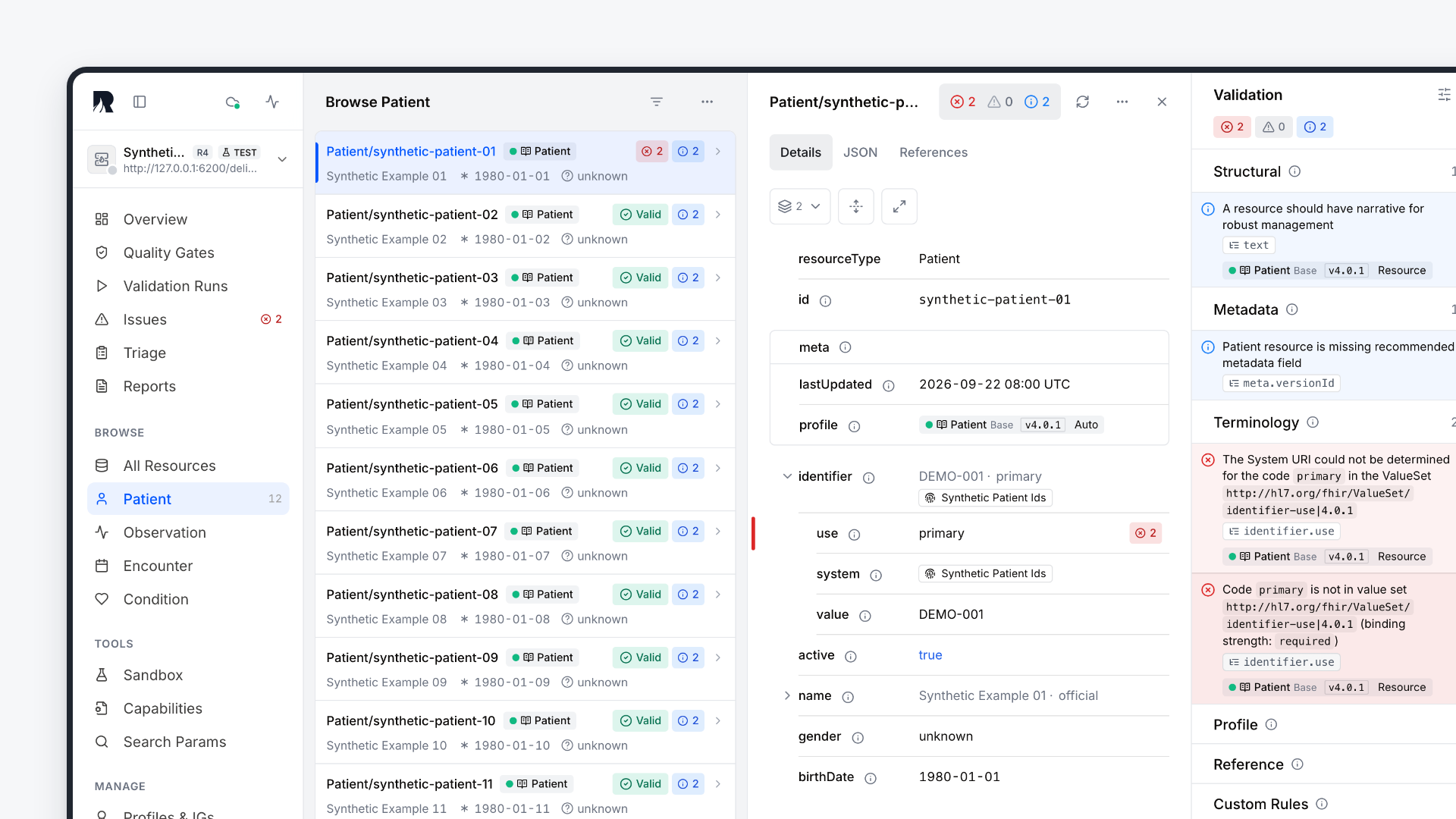
The Records public demo is now open. You can browse public FHIR servers, inspect findings in context and try corrections with synthetic examples — without an account or local installation.
Records is built for continuous FHIR conformance checks — repeatable validation, comparisons over time and findings you can investigate in context. The public demo opens up the investigation workflow: understand the data, examine a requirement and verify a correction.
Records brings the resource, its relationships and its validation findings into one connected view. Which field caused a finding? What does the profile require? And did the correction resolve the issue? The context beside the data helps you decide what to change and check the result.
For MedVertical, opening this workflow is an important step: developers, implementers and FHIR educators can now try it for themselves and help shape its next steps with concrete examples.
Understand FHIR® data. Verify the change.
From a finding to a verified correction
Start with the synthetic Patient in the sandbox. Its name.use contains officiall, a deliberate misspelling of official. Records shows the resource beside its validation findings. Select Details, then the finding’s path to see the affected field and the ValueSet behind the message.
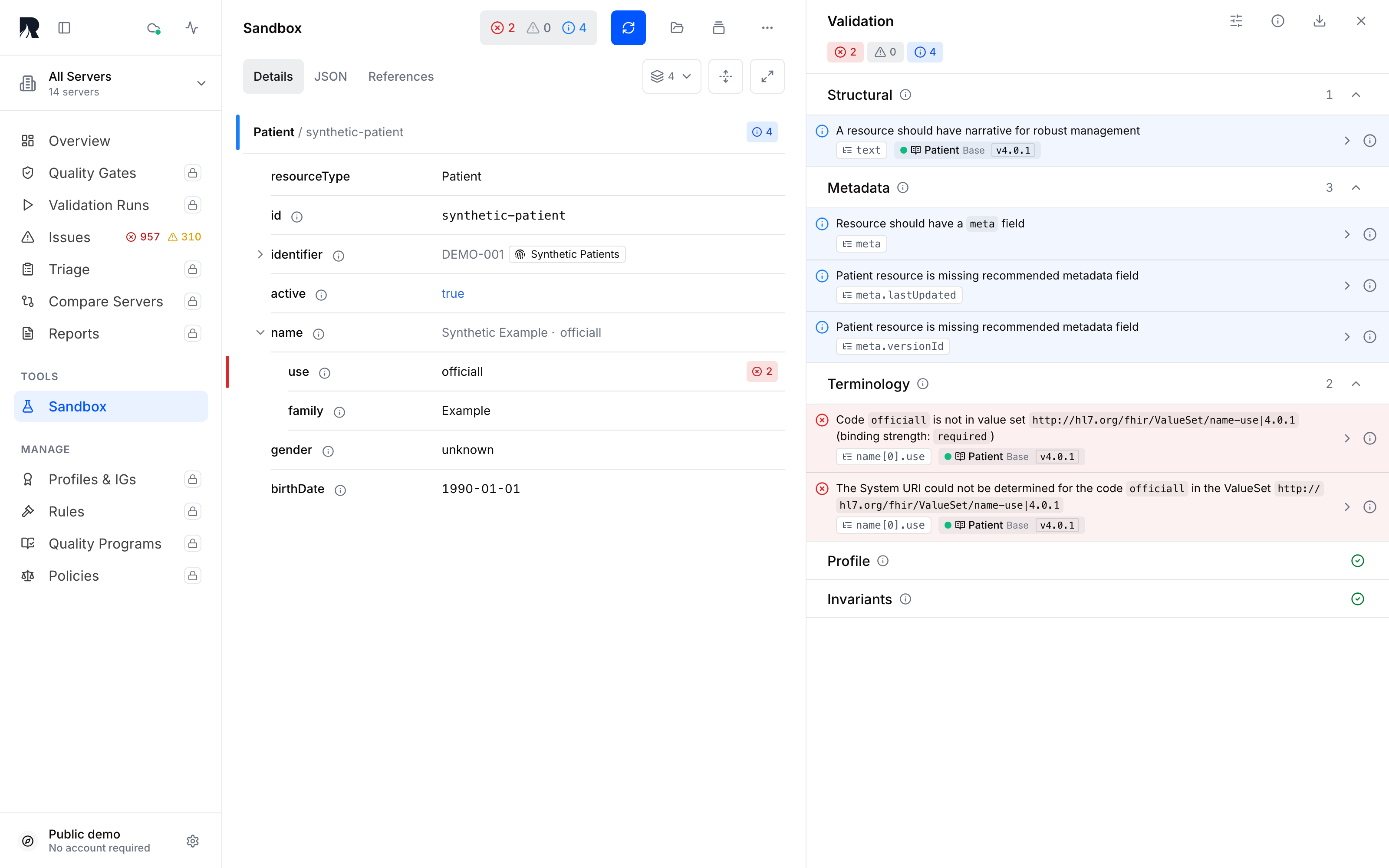
The rejected value, field path and ValueSet together. Captured in the public Records sandbox, 24 September 2026.
Once you can see the problem, try the correction:
- Let the initial sandbox check finish; choose Validate resource if Auto-validate is off.
- In JSON, change
"use": "officiall"to"use": "official". - Choose Revalidate and inspect Changes since first check. With Auto-validate enabled, the check starts after the edit.
In the recorded example, that one-character change resolves two findings. Four information findings remain. You can see what improved and what still needs attention, then download Findings JSON to keep the result and its validation context.
This small loop is central to Records: understand the finding, change the relevant value and verify the effect. Watch the complete correction, including the before-and-after views.
Compare FHIR R4 with ISiK
A typo is a useful first exercise. Profiles introduce a more interesting question: can the same resource meet one set of requirements and fail another?
Open the ISiK example in the sandbox. The synthetic Patient has a name, birth date, gender and an identifier. The identifier has a system and a value, but no type identifying it as a patient number.
Let the initial FHIR R4 check finish, then choose Compare profiles. ISiK Patient 5.1.3 is preselected; choose Run comparison to check the same, unchanged resource against that profile. Both sets of requirements stay visible.
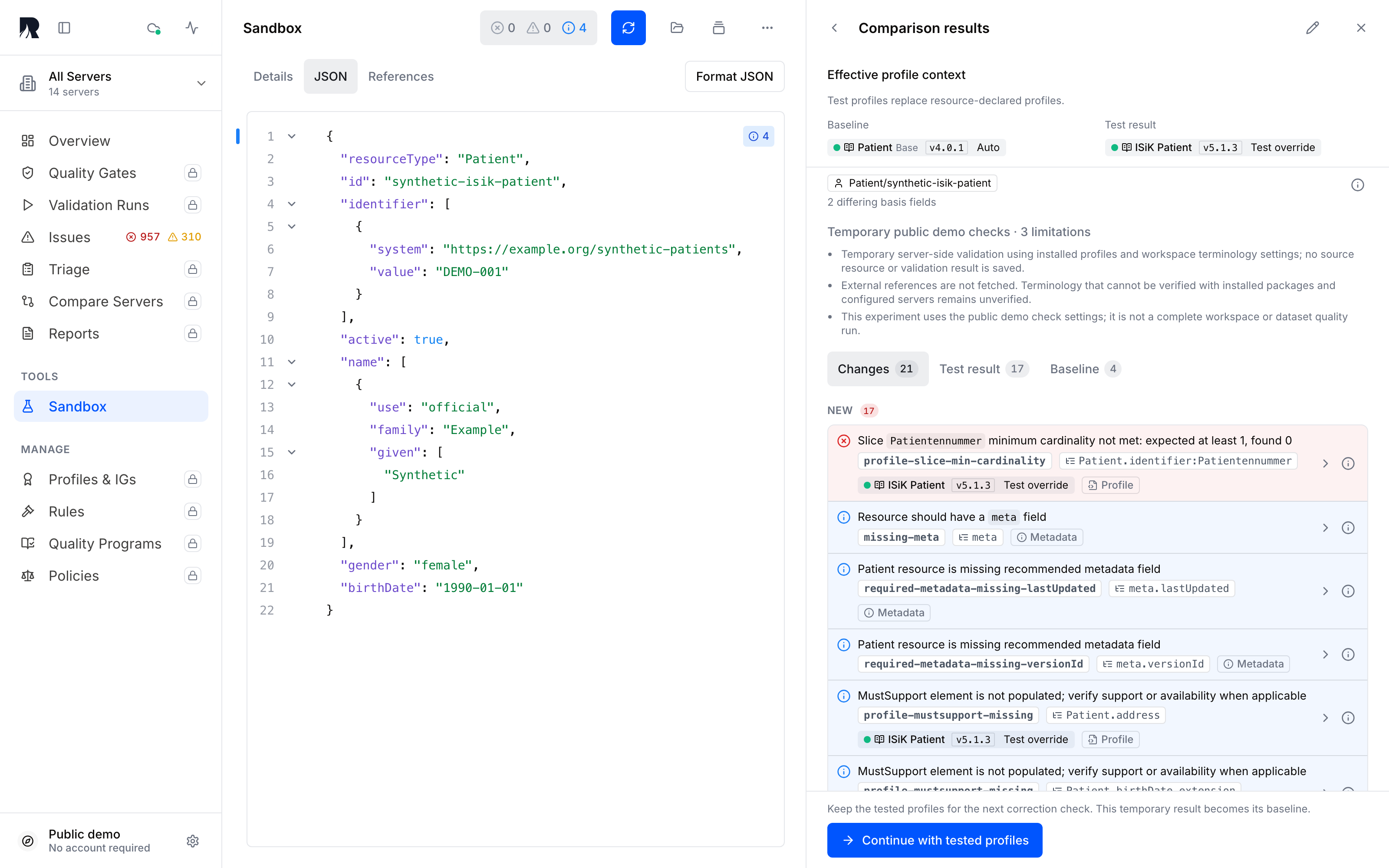
Live public sandbox, 24 September 2026. The resource is unchanged; the profile requirements differ.
In this check, FHIR R4 reports no errors. ISiK reports an error because it requires a Patientennummer identifier whose type includes MR from http://terminology.hl7.org/CodeSystem/v2-0203. The number is already present; its meaning must be explicit for the receiving system.
Follow the finding’s field path and profile tag to inspect that requirement beside the identifier. Choose Continue with tested profiles, then add identifier[0].type.coding in JSON, with system set to http://terminology.hl7.org/CodeSystem/v2-0203 and code to MR. Revalidate checks the correction under the same ISiK profile. The patient-number error and two related information findings resolve; fourteen information findings remain.
That distinction matters: the first comparison changes the requirements while keeping the data constant. The second changes the data while keeping the selected profile constant. It helps explain why a finding appeared and whether a correction addressed it.
The example pins the official gematik ISiK Stufe 5 package 5.1.3. Use the version required by your own integration. The ISiK walkthrough shows the exact requirement, correction and result, with desktop and mobile views.
Explore data you already work with
The same approach applies beyond the prepared examples. Select a public test server such as HAPI FHIR, Firely, SMART Health IT or Blaze, then choose a resource type under Browse. The demo also includes curated synthetic datasets: Clinical Examples on Medplum and Clinical Scenarios on Aidbox. Available resources and FHIR releases depend on the server.
If you already send synthetic resources to one of those servers, keep the resource ID returned by the server. In Records, select the same server and resource type, then use Show filters → Add → _id to find it. Open Details or JSON to inspect the fields and available findings. More actions → Try a test copy takes it into the sandbox. Capabilities and Search Params show what the selected server supports.
Relationships often explain what a resource means. Open an Observation’s subject reference to inspect its Patient beside it, keeping the source in view. You can follow identifiers, profile context and relationships through the data. Opening a referenced resource for inspection does not mean it was included in the validation check.
For a question that spans several resources, try the dataset-quality example. Its three synthetic Patients and two Observations illustrate completeness, duplicate identifiers and subject references. Open a finding, inspect the affected resources and compare the corrected example. Read the evaluated population alongside the result; other indicators may remain unevaluated.
Know what your result covers
The public demo is a place to explore data and run temporary checks. Check details shows the basis and limits of each result. Keep three things in mind:
- Use synthetic, non-confidential data. Public test servers are shared; resources can change or disappear. Sandbox checks run on the Records server. A test copy does not change the original resource or create a saved workspace validation run.
- Read the validation context. Results depend on the input, FHIR release, installed profile versions and available terminology. Unavailable terminology may remain unverified, and checks do not fetch external reference targets. Comparing profiles can also change a finding’s provenance without changing the data.
- Keep the conclusion within the checked scope. Resolving one finding does not establish that every requirement has been met. A resource-level check cannot demonstrate an entire system’s ISiK conformance. MustSupport obligations also depend on the implementation guide and actor; they are not equivalent to a minimum cardinality of one.
Both inline screenshots were captured in the public sandbox. Their findings describe those recorded examples; your current results may differ.
For recurring checks on your own FHIR servers, saved baselines and shared review, request a Records workspace evaluation. Workspace access is arranged on request after qualification; the public demo is open without an account.
Help shape what comes next
The public demo makes it possible to discuss concrete examples: where does an explanation, a relationship or a comparison need to be clearer?
Start with one resource and one finding. Follow it to the field, inspect the requirement and try a correction. Which finding is still difficult to understand, even with its field and profile beside it?
Share an example, using synthetic data and the relevant FHIR release or profile version. Concrete cases help improve Records and guide the next public examples.
Written with AI assistance.